Someday, you might want to make a computer could not be turned off easily. For example because you are running a program that need a long time to wait ( download a big file, rendering a video, etc ). And you have to leave the room. To prevent a friend or anyone else to turn off the computer, then one way is to disable the function of Shutdown, Restart, Sleep or Hibernate menu.
Here are the steps you have to follow :
• Click Start
• For Windows 7, type gpedit.msc in the Search Programs and Files column
• For Windows XP, type gpedit.msc in the RUN command
• Click OK or hit Enter, it will show the Local Group Policy Editor
• Go to User Configuration -> Administrative Templates -> Start Menu And Taskbar
• For Windows 7, in the right pane, find the Remove and Prevent Access to the shutdown, Restart, Sleep, and Hibernate. Then double click on it
• For Windows XP, on the right pane, find the Remove and Prevent access to the Shut Down command. Then double click on it
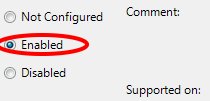
• Select Enable, then click OK
• See the result. We can't Shutdown, Restart, Sleep, Hibernate anymore, and neither when you press Ctrl + Alt + Del, these functions are disable.
• To make it back in to the normal function, just follow all the steps above, except for the last one, you need to change back the option from Enable to Disable.
• When being in a state of disable, in fact we can still shutdown the computer. the way is by typing the instructions in the search (Windows 7) or in the RUN command (windows XP ).
The instructions are :
shutdown /s (for shutdown)
shutdown /r (to restart).
See Also :
• How To Remove Delta Search Engine From Mozilla Firefox
• How to know Framework Version on your Computer
• Entering Vsphere 4 Serial key through VClient
Here are the steps you have to follow :
• Click Start
• For Windows 7, type gpedit.msc in the Search Programs and Files column
• For Windows XP, type gpedit.msc in the RUN command
• Click OK or hit Enter, it will show the Local Group Policy Editor
• Go to User Configuration -> Administrative Templates -> Start Menu And Taskbar
• For Windows 7, in the right pane, find the Remove and Prevent Access to the shutdown, Restart, Sleep, and Hibernate. Then double click on it
 |
| Remove and Prevent Access to the shutdown (Windows 7) |
 |
| Remove and Prevent access to the Shut Down command (Windows XP) |
• See the result. We can't Shutdown, Restart, Sleep, Hibernate anymore, and neither when you press Ctrl + Alt + Del, these functions are disable.
• To make it back in to the normal function, just follow all the steps above, except for the last one, you need to change back the option from Enable to Disable.
• When being in a state of disable, in fact we can still shutdown the computer. the way is by typing the instructions in the search (Windows 7) or in the RUN command (windows XP ).
The instructions are :
shutdown /s (for shutdown)
shutdown /r (to restart).
See Also :
• How To Remove Delta Search Engine From Mozilla Firefox
• How to know Framework Version on your Computer
• Entering Vsphere 4 Serial key through VClient