Usually to access data on an iPhone (and others iOS) you need iTunes installed on the computer. But you can also use other ways (not use iTunes) to access or download data from iPhone/iPad.
There are many Apps can be used for accessing the iPhone/iPad data, one is Wifi Photo Transfer special app for downloading photo/picture from iPhone/iPad to other devices, to computer, Android device, etc those have internet browser and wifi connection.
Connect iPhone/iPad and the computer or other devices to the same wifi (same SSID/name)
Install Wifi Photo Transfer App on the iPhone/iPad
Access the iPhone/iPad using browser from other devices (computer, Android, iOS, etc )
Browse and download the Pictures.
Detail Steps :
• Install Wifi Photo Transfer
In the iPhone/iPad that you want to access, open App Store, then search for App using keyword Wifi Photo Transfer.
Choose the App like this figure :
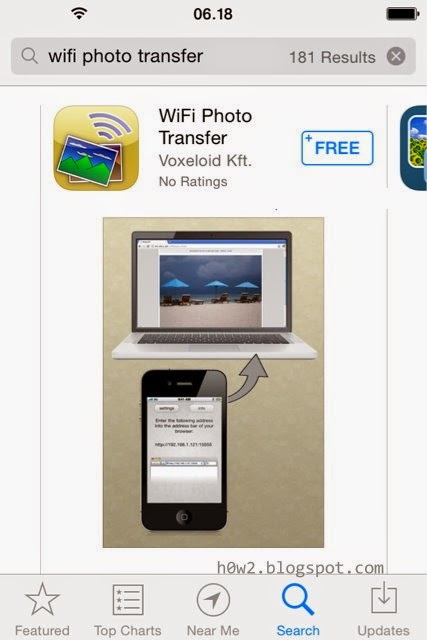
Then install the App.
• After already installed, run/open the App. The address to be accessed will be appeared, for example in my iPhone (figure below) the IP address is 192.168.2.108:15555
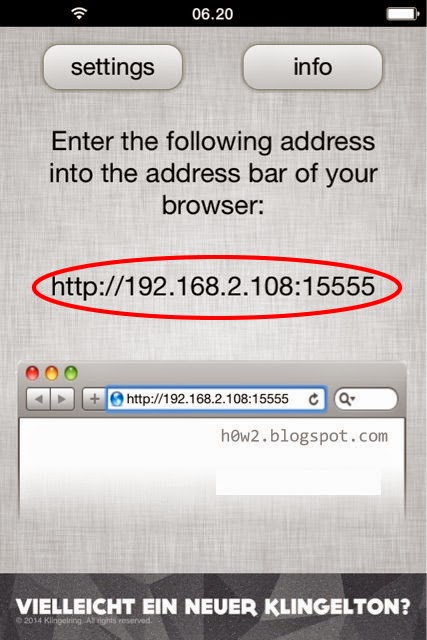
• Go to Browser in other devices (computer, android, etc that connect to the same wifi as iPhone connected)
then in the address bar of the browser type/write the IP address and port, according to the instruction on the App above, in my example is http://192.168.2.108:15555

• You can browse the pictures and download them
Also you can download multiple pictures at once in zip format.

There are many Apps can be used for accessing the iPhone/iPad data, one is Wifi Photo Transfer special app for downloading photo/picture from iPhone/iPad to other devices, to computer, Android device, etc those have internet browser and wifi connection.
Connect iPhone/iPad and the computer or other devices to the same wifi (same SSID/name)
Install Wifi Photo Transfer App on the iPhone/iPad
Access the iPhone/iPad using browser from other devices (computer, Android, iOS, etc )
Browse and download the Pictures.
Detail Steps :
• Install Wifi Photo Transfer
In the iPhone/iPad that you want to access, open App Store, then search for App using keyword Wifi Photo Transfer.
Choose the App like this figure :
Then install the App.
• After already installed, run/open the App. The address to be accessed will be appeared, for example in my iPhone (figure below) the IP address is 192.168.2.108:15555
• Go to Browser in other devices (computer, android, etc that connect to the same wifi as iPhone connected)
then in the address bar of the browser type/write the IP address and port, according to the instruction on the App above, in my example is http://192.168.2.108:15555
• You can browse the pictures and download them
Also you can download multiple pictures at once in zip format.